When a Shopify discount code or automatic promotion fails to apply at checkout, the underlying issue is almost never an intermittent platform glitch. Instead, the failure traces directly to one of five architectural bottlenecks: (1) catalog scope mismatches where items in the cart do not belong to eligible collections or specific product lists, (2) threshold calculation failures where the net merchandise subtotal falls below minimum purchase boundaries, (3) stacking permission collisions where competing automatic promotions block coupon codes without reciprocal permissions, (4) customer segmentation authentication barriers where guest shoppers have not logged in to access tagged VIP discounts, or (5) platform concurrency caps where a store exceeds Shopify’s 25 active automatic discount ceiling.
For high-volume merchants, unexpected checkout discount errors represent an acute commercial emergency. When customers encounter error notices such as “Discount code isn’t valid for the items in your cart” or “Discount code isn’t available to you right now,” checkout momentum stalls, cart abandonment spikes, and customer support channels become overwhelmed. This technical diagnostic guide provides a systematic 5-step triage framework, decodes every native Shopify checkout error message, examines financial margin safeguards, and outlines a verified 7-point QA acceptance checklist to ensure flawless promotional execution.

1. The Master Troubleshooting Hierarchy: 5-Step Diagnostic Flow
To identify why a discount is not applying, avoid random trial-and-error adjustments in the Shopify Admin. Follow this systematic 5-step diagnostic hierarchy to isolate the failure layer within minutes:
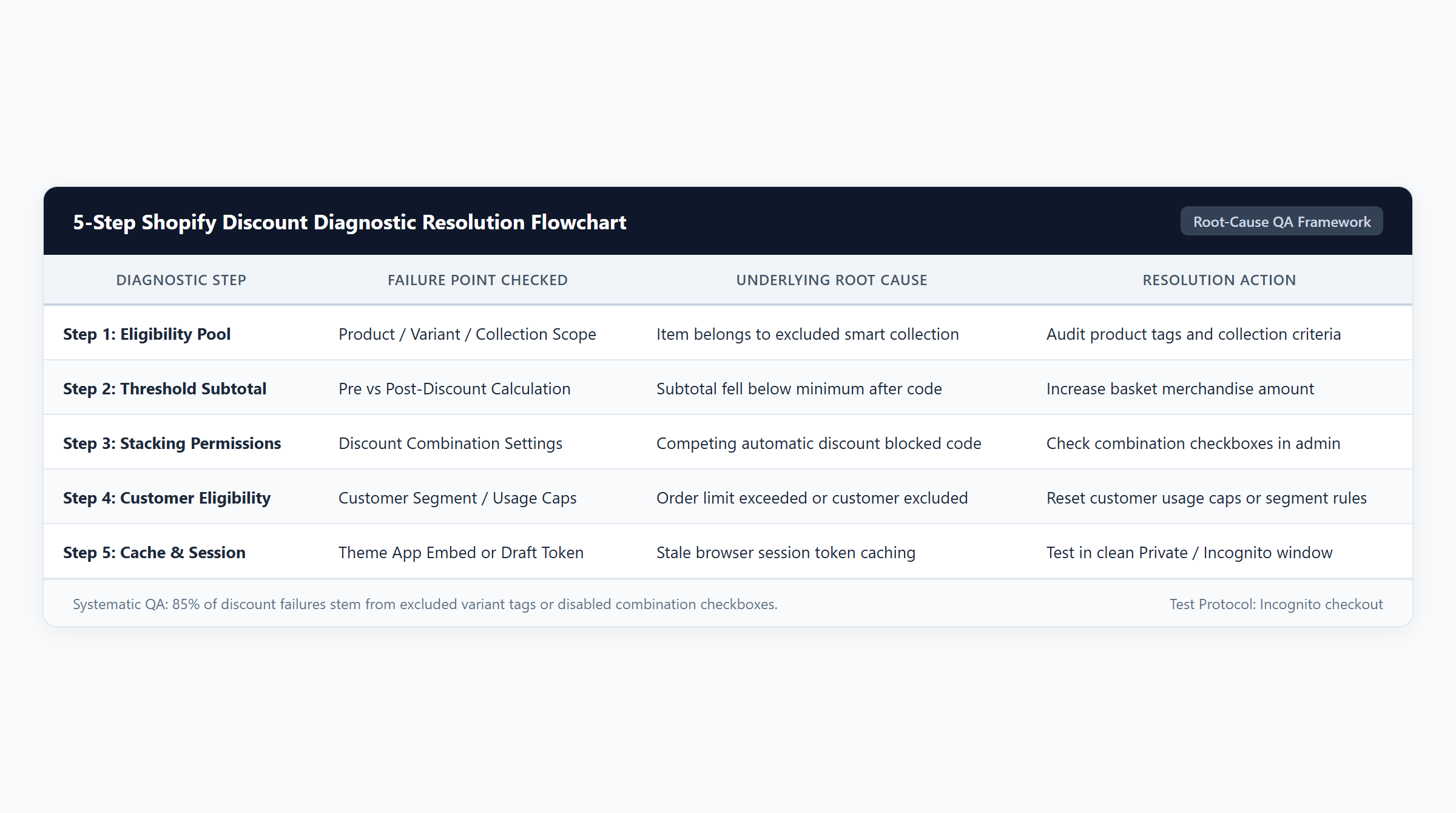
- Step 1: Catalog Scope & Exclusion Audit: Verify whether the line items currently in the cart match the exact collections, product variants, or tags specified in the discount rule.
- Step 2: Spend & Quantity Threshold Verification: Audit the post-discount subtotal against minimum spend amounts, checking for decimal rounding errors and excluded tax/shipping amounts.
- Step 3: Stacking Permissions & Collision Checks: Inspect active automatic discounts and confirm that reciprocal combination checkboxes are enabled across Product, Order, and Shipping tiers.
- Step 4: Customer Account & Usage Limit Authentication: Verify whether the code is locked to specific customer tags or email lists, and confirm that total usage limits have not expired.
- Step 5: Functions, App Caching & Checkout Pipeline Review: Check for draft order API bypasses, third-party theme cart drawer desynchronization, and Shopify Functions runtime budgets.
2. Step 1: Catalog Scope & Exclusion Mismatches
The single most frequent checkout discount error message generated on Shopify is:
"Discount code isn’t valid for the items in your cart"
This error occurs when the checkout engine evaluates the items in the cart and determines that zero line items meet the inclusion criteria configured under the discount’s “Applies to” setting.
Automated vs Manual Collection Exclusions
Merchants commonly configure discounts to apply to a specific automated collection (e.g., “Summer Apparel”). However, automated collections depend strictly on product condition rules (such as Product tag is equal to summer-2026 or Product type is equal to Apparel). If a merchant creates a new product variant or imports inventory without assigning the exact tag, that item is silently excluded from the collection.
Furthermore, if a cart contains a combination of eligible full-price items and excluded clearance items, Shopify’s behavior depends on the discount type:
- Percentage Product Discounts: The discount will apply successfully to the eligible items in the cart, leaving the excluded items at full price. The code will NOT be rejected outright unless all items in the cart are excluded.
- Fixed Amount Product Discounts: If the discount specifies “$10 off specific products,” but the eligible item in the cart is priced at $8.00, the discount cannot fully apply, which may trigger unexpected line allocations.
- Gift Cards and Digital Products: Shopify core rules strictly prohibit discount codes from applying to the purchase of Shopify Gift Cards. If a cart contains only a gift card, any merchandise discount code will be rejected immediately.
3. Step 2: Minimum Spend Thresholds & Calculation Order
Minimum purchase requirements represent another major source of checkout abandonment. Shopify allows merchants to enforce minimum requirements based on either a Minimum purchase amount ($) or a Minimum quantity of items.
The Post-Discount Subtotal Trap
When multiple promotions interact, Shopify calculates minimum purchase requirements on the intermediate discounted subtotal, not the original catalog retail price (MSRP). For example, if a store offers an order discount of “$10 off orders over $50” and the customer also has a 20% collection discount active:
- A cart containing a $55.00 jacket qualifies for the $10 off discount because $55.00 exceeds the $50.00 threshold.
- However, if an automatic 20% product discount reduces the jacket to $44.00, the intermediate subtotal is now $44.00.
- Because $44.00 is below the $50.00 minimum spend requirement, Shopify automatically strips the $10 order discount, displaying a threshold failure notice.
The Decimal Rounding Boundary Failure
Ecommerce merchants frequently price products ending in .99 or .95. This pricing strategy frequently collides with whole-dollar threshold rules. Consider our verified financial audit scenario where a merchant sets a minimum spend threshold of exactly $50.00:
| Customer Cart Items | Unit Price | Quantity | Gross Cart Value | Threshold Rule | Checkout Outcome |
|---|---|---|---|---|---|
| Organic Cotton T-Shirt | $24.99 | 2 | $49.98 | Minimum Spend: $50.00 | REJECTED (Fails by $0.02) |
To the customer, purchasing two $25 shirts intuitively feels like a $50 cart. However, the checkout engine calculates the subtotal as exactly $49.98. Because $49.98 is strictly less than $50.00, the discount fails to apply. Without a dynamic cart drawer progress bar informing the customer that adding an accessory will unlock their savings, the shopper perceives the website as broken and leaves.
4. Step 3: Stacking Permissions & Collision Conflicts
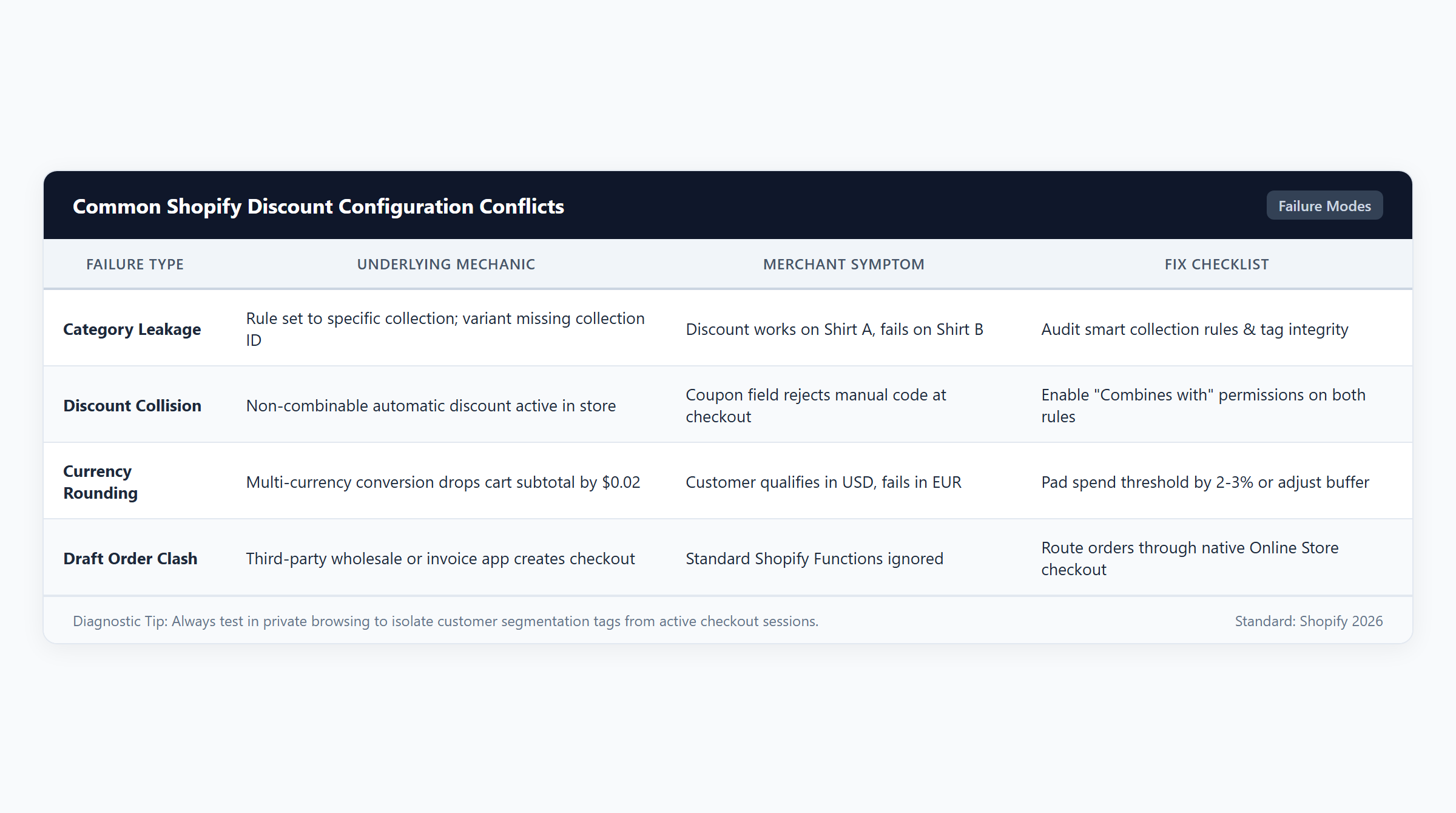
When a merchant reports that “a discount code works in testing but fails when real shoppers use it,” the culprit is almost invariably a collision with an active automatic discount.
Automatic Precedence and Mutual Exclusivity
By default, Shopify enforces mutual exclusivity between promotions. If your store has an active automatic discount (such as “Free Shipping on all orders” or an automatic “10% Welcome Discount”), and a customer attempts to enter a manual influencer coupon code at checkout, Shopify will evaluate whether the two promotions are permitted to combine.
If combination permissions are not configured reciprocally:
- Shopify automatically compares the financial savings of the automatic discount against the manual code.
- The engine applies only the single discount offering the largest monetary reduction to the customer.
- If the automatic discount provides greater or equal savings, the manual discount code is rejected with an error message stating that the code cannot be combined with existing promotions.
The 25 Concurrent Automatic Discount Ceiling
Shopify enforces a hard platform limit of 25 concurrent active automatic discounts per store. When a store reaches this 25-discount ceiling, attempting to activate another automatic promotion will fail, or older automatic rules will be overwritten, causing erratic promotional behavior across active sales campaigns.
5. Step 4: Customer Account Segmentation & Usage Limits
When discounts are configured for specific customer cohorts, authentication states dictate whether checkout succeeds or fails.
Customer Eligibility Errors
If a discount code is restricted to a specific customer segment (such as “Wholesale”, “VIP Tier”, or “First-Time Buyers”), shoppers will encounter this checkout message if eligibility is unverified:
"Discount code isn't available to you right now"
This message occurs under three specific conditions:
- Guest Checkout: The customer is browsing as a guest. Even if their email address matches an eligible account, Shopify does not validate customer tags until the shopper enters their email address or logs into their customer account at checkout.
- Tag Desynchronization: The customer’s account is missing the required tag in Shopify Admin > Customers due to a sync delay from an external CRM or loyalty platform.
- First-Time Customer Logic: The discount is restricted to first-time buyers, but the customer’s email address has an existing order in the system (including archived or cancelled orders).
Usage Limits and Expiration Errors
If a customer encounters the generic error:
"Enter a valid discount code"
Verify the discount code’s lifecycle settings under Shopify Admin > Discounts:
- Total Usage Limits: If the code was limited to the “First 100 customers,” check whether the usage counter has reached 100/100. Once exhausted, Shopify disables the code immediately.
- One Use Per Customer: If enabled, customers who previously completed a purchase using that email address cannot reuse the code, even for a separate billing profile.
- Active Dates and Timezones: Verify that the discount’s start date has arrived and that the end date has not passed. Note that discount scheduling uses the store’s primary timezone (configured under Settings > General), not the customer’s local timezone.
6. Step 5: Shopify Functions, App Caching & Draft Order Restrictions
Modern Shopify promotional architectures rely on Shopify Functions running as WebAssembly (Wasm) modules during checkout. While Functions deliver unprecedented execution speeds, specific environmental factors can disrupt discount execution.
The 5ms Runtime Budget
Shopify Functions execute in a sandboxed WebAssembly runtime directly on Shopify edge servers with a strict 5ms compute budget. If an unoptimized third-party discount app attempts to execute massive nested loops over thousands of catalog variants or initiates slow external API lookups during checkout, Shopify automatically terminates the function execution to protect checkout performance. When a function times out, its discount calculations fail silently, reverting the cart to standard pricing.
Draft Orders and Third-Party Checkout Bypasses
Automatic discounts and Shopify Functions operate exclusively within the standard Shopify online checkout pipeline. If your store generates sales via Draft Orders (e.g., custom wholesale invoices, phone orders, or B2B quote apps), Shopify does not automatically apply active automatic discounts or calculate function-based promotional rules. Draft orders require manual price adjustments or custom API script integration.
Cart Drawer Visual Desynchronization
A frequent merchant complaint is that “discounts appear in checkout but do not show up in the cart drawer.” This is caused by theme architecture. Standard Shopify themes fetch cart details via the client-side Ajax API (/cart.js), which returns baseline line item prices before server-side discount logic is evaluated. To eliminate customer confusion, merchants must deploy an app that provides synchronized cart drawer widgets or utilizes Shopify’s Cart Transform API.
7. Financial Audit & Profit Impact Models
Diagnosing discount failures is not merely a technical exercise; it directly safeguards store economics. Let us examine four audited commercial scenarios illustrating the margin impact of discount execution, collection exclusions, and threshold boundaries:
| Commercial Cart Scenario | Gross Cart Value | Discount Applied | Net Paid | Total COGS | Gross Profit | Profit Margin |
|---|---|---|---|---|---|---|
| Scenario 1: Spend Threshold Qualified $55 Cart (Beanie $30 + Tote $25) with $10 Coupon Applied |
$55.00 | $10.00 | $45.00 | $18.00 ($10 Beanie + $8 Tote) |
$27.00 | 60.0% |
| Scenario 2: Collection Exclusion Handled $70 Cart ($50 Full-Price Sweatshirt + $20 Clearance Cap with 20% Promo) |
$70.00 | $10.00 (20% of $50 item only) |
$60.00 | $22.00 ($15 Sweatshirt + $7 Cap) |
$38.00 | 63.3% |
| Scenario 3: Boundary Failure ($0.02 Short) $49.98 Cart (2x $24.99 Tees) Failing $50.00 Threshold |
$49.98 | $0.00 (Discount Rejected) |
$49.98 | $16.00 ($8 per Tee) |
$33.98 | 68.0% |
| Scenario 4: Easy Deals Rule Coordination $140 Cart (2x $60 Oxford Shirts + $20 Tee with 10% Tiered Spend Goal) |
$140.00 | $14.00 (10% on $140 basket) |
$126.00 | $46.00 ($40 Shirts + $6 Tee) |
$80.00 | 63.5% |
As demonstrated in Scenario 2, properly configured collection scopes allow merchants to protect profitability on low-margin inventory. By restricting a 20% discount code to full-price merchandise ($50.00 sweatshirt), the clearance item ($20.00 cap) remains un-discounted. The customer receives a $10.00 discount, paying $60.00 net. With total COGS of $22.00, the merchant captures $38.00 in gross profit (63.3% margin), preventing clearance inventory from becoming margin-negative.
In Scenario 4, deploying Easy Deals transforms threshold friction into an AOV growth engine. Rather than rejecting customers who fall short of arbitrary thresholds, Easy Deals provides dynamic cart progress bars that encourage shoppers to increase basket sizes from $100 to $140, capturing $80.00 in gross profit while maintaining a robust 63.5% profit margin.
8. Diagnostic Error Dictionary & Resolution Matrix
Use this verified reference dictionary to decode native Shopify checkout error messages instantly:
| Shopify Checkout Error Message | Underlying Root Cause | Immediate Administrative Resolution |
|---|---|---|
| “Discount code isn’t valid for the items in your cart” | None of the items in the cart match the collections or products specified in the discount rule. | Check discount “Applies to” settings in Shopify Admin. Ensure collection condition rules match product tags or add items to eligible lists. |
| “Discount code isn’t available to you right now” | Discount is restricted to specific customer segments, tags, or email lists, and customer is not authenticated. | Require customer login prior to checkout, or verify that the customer’s profile contains the exact eligibility tag. |
| “Enter a valid discount code” | Typographical code entry error, promotion has expired, or total usage limit has been reached. | Check active start/end dates, verify timezone settings under Settings > General, and inspect usage counters in Shopify Admin. |
| “Discount code cannot be combined with existing discounts” | Conflicting automatic discount is active and reciprocal combination permissions are disabled. | Navigate to Admin > Discounts, open both the automatic discount and the code, and check reciprocal combination boxes. |
| “You’ve reached the limit of discount codes you can apply” | Customer attempted to apply more than 5 discount codes at checkout. | Shopify platform ceiling allows a maximum of 5 discount codes per order. Advise customer to consolidate codes. |
| “Discount requires a minimum purchase of $X” | Post-discount merchandise subtotal falls below the required spend threshold. | Verify whether intermediate product discounts reduced the subtotal below the threshold. Lower minimum threshold or upsell cart items. |
9. Pre-Launch Acceptance Testing Checklist: 7-Point QA Verification
Before launching major sales events or BFCM marketing blitzes, conduct end-to-end checkout verification using this 7-point QA acceptance testing checklist:
| Test Item | Testing Objective | Verification Methodology | Expected System Behavior |
|---|---|---|---|
| QA-01: Incognito Guest Test | Confirm public accessibility of standard discount codes. | Open private browsing window; add qualifying items; apply discount code as guest. | Discount applies smoothly without demanding customer account login. |
| QA-02: Boundary Penny Test | Verify spend threshold behavior at boundary points. | Build cart valued at $0.01 below threshold; attempt code; add qualifying item. | Code is rejected when below threshold; instantly qualifies upon adding item. |
| QA-03: Clearance Exclusion Test | Ensure non-promoted items do not receive discounts. | Add 1 full-price item and 1 clearance item; apply collection percentage code. | Discount applies strictly to the full-price item; clearance price remains unchanged. |
| QA-04: Reciprocal Stacking Test | Verify automatic and manual discount compatibility. | Trigger active automatic discount; apply manual shipping or order code. | Both discounts appear as active line items; deductions calculate sequentially. |
| QA-05: Customer Tag Segment Test | Verify VIP exclusivity rules. | Log in with untagged account; attempt VIP code; log in with tagged VIP account. | Untagged account receives error; tagged VIP account applies discount immediately. |
| QA-06: Cart Drawer Parity Test | Prevent visual discrepancies before checkout. | Inspect cart slide-out subtotal and badges; proceed to native checkout. | Cart drawer savings match checkout line-item deductions to the penny. |
| QA-07: Concurrency Budget Test | Ensure store remains under platform limits. | Review active automatic promotions under Shopify Admin > Discounts. | Total active automatic discounts count remains comfortably below the 25-discount ceiling. |
10. Implementation Blueprint with Easy Deals
To eliminate discount conflicts and simplify complex promotional management, high-growth Shopify merchants rely on Easy Deals. Built natively on Shopify Functions and available on the Shopify App Store for $9.99/month following a 7-day free trial, Easy Deals provides enterprise-grade discount governance:
- Unified Promotional Engine: Consolidate tiered volume discounts, BOGO rules, and cart spend milestones into a single active app discount, completely bypassing Shopify’s 25 automatic discount platform limit.
- Live Cart Drawer Progress Bars: Display dynamic visual progress bars inside your slide-out cart, showing shoppers exactly how many dollars they need to unlock free gifts or free shipping.
- Automated Conflict Resolution: Prevent margin-negative discount stacking with programmable hierarchy rules that automatically resolve multi-promotion collisions.
- Serverless 5ms Checkout Execution: Operates directly on Shopify’s global WebAssembly infrastructure, guaranteeing lightning-fast checkout speeds with zero script latency.
11. Frequently Asked Questions (FAQ)
Why does Shopify say “Discount code isn’t valid for the items in your cart”?
This error indicates that none of the products currently in the customer’s cart match the specific collections, product variants, or product tags specified in the discount configuration in Shopify Admin. Ensure that the products in the cart are assigned to the eligible collection.
Can an automatic discount block a manual discount code from working?
Yes. If your store has an active automatic discount and reciprocal combination permissions are not enabled, Shopify will evaluate which promotion gives the customer greater savings. The platform will apply only the single largest discount, rejecting the manual code.
Why is my discount code not applying to gift cards?
Under native Shopify platform rules, discount codes cannot be applied toward the purchase of Shopify Gift Cards. If a customer’s cart contains only gift cards, all standard merchandise discount codes will be rejected automatically.
Does Shopify calculate minimum spend before or after other discounts?
Shopify evaluates minimum purchase requirements on the post-discount subtotal. If an initial product discount reduces a cart below the required minimum threshold, subsequent order-level discounts or free shipping promotions will fail to qualify.
How do I test customer-specific discounts before launching?
To test customer-specific discount codes, create a test customer account in Shopify Admin with the exact required tag. Open an incognito browser window, log into the test account on your storefront, add eligible items, and proceed through checkout to confirm successful qualification.