Launch your first Buy X Get Y offer with ED: Buy X Get Y & Free Gifts. This walkthrough uses buy two eligible products, get one gift free, then checks the complete customer journey.
Before you start
- Open the app from Shopify admin and confirm that the products and gift variants are available to shoppers.
- Decide which products count toward the purchase requirement, which gift is offered, and when the campaign should run.
- Use a test cart and review your published theme before activating the promotion.
1. Set up the campaign
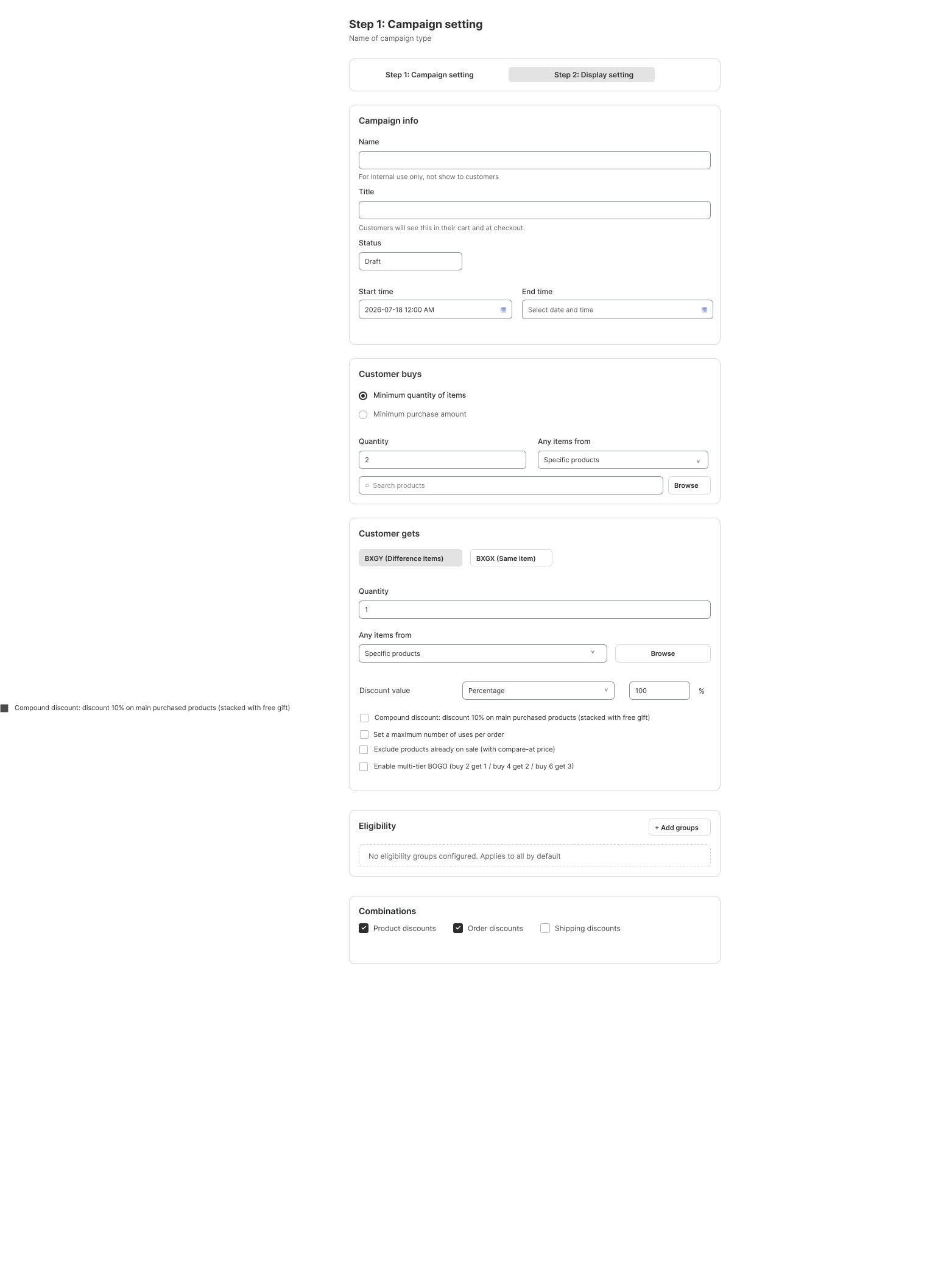
- Open the Buy X Get Y campaign flow and start with Campaign setting.
- Under Campaign info, enter an internal Name and a customer-facing Title. Keep Status as Draft while configuring. Set the Start time and optional End time.
- Under Customer buys, choose Minimum quantity of items, enter 2, select Specific products, and use Browse to choose the qualifying products.
- Under Customer gets, choose BXGY (Difference items), enter Quantity 1, and select the gift product. Use BXGX (Same item) only when the purchased item itself is the reward.
- Set the gift Discount value to Percentage 100% for this free-gift example. Review usage limits, eligibility and Combinations before continuing.
2. Choose how shoppers receive the gift
- Continue to Display setting. Choose Automatically to add the gift when conditions are met, or Customer chooses to let shoppers select it.
- For Customer chooses, select Pop-up or Gift on Slide cart and open Edit widget. Customize the message, button labels and desktop/mobile appearance.
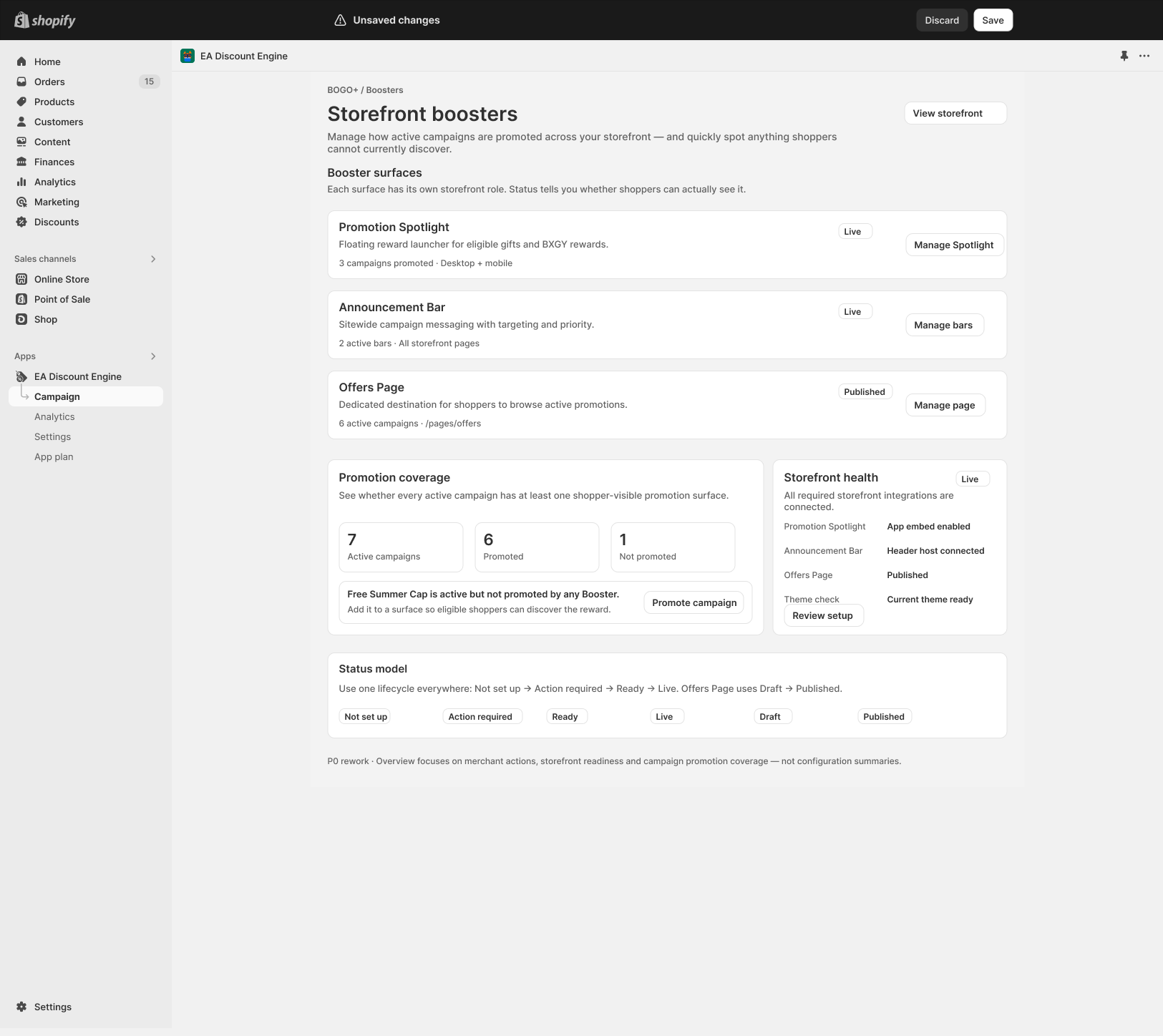
- Enable the app embed in the published Shopify theme. In Booster, use Storefront health and Review setup to check the surfaces you selected.
- Save the campaign. When the settings and schedule are correct, make the campaign Active using the status or activation control available in your version.
3. Test before promoting
- Add one eligible item: the gift should not yet qualify.
- Increase to two eligible items: the gift should be added automatically or become selectable, matching your chosen method.
- If selection is required, choose a valid gift variant and add it to the cart.
- Open checkout and confirm the gift discount, quantities and campaign title.
- Remove a qualifying item and verify that the reward no longer receives an unintended discount. Repeat on mobile and with an ineligible product.
If the result differs
Check the campaign status, schedule, selected variants, eligibility and discount combinations first. If checkout works but the widget is missing, check the theme connection and cart integration separately.
Illustrations are taken from the app design. Some screens use the legacy label “EA Discount Engine”; the app name is ED: Buy X Get Y & Free Gifts. Available controls can vary with the released version.
Related resources
Related guides: Make sure your theme is ready with Theme App Embeds and double check our Installation Checklist.