Promotion Spotlight is a storefront launcher and popover experience designed to help merchants showcase ongoing campaigns without cluttering the page layout. While an announcement bar sits fixed at the top or bottom, the Spotlight floats unobtrusively on the screen and opens an interactive card detailing your active rewards.
1. Enable Spotlight in Booster settings
- In the app admin, navigate to Booster → Promotion Spotlight.
- Toggle the launcher status to Active.
- Choose your preferred launcher style: a minimal round badge icon or an expanded pill with label text (e.g., “Active Offers”).
- Set the screen position: bottom-right, bottom-left, or middle-right to ensure it does not overlap with third-party customer chat widgets.
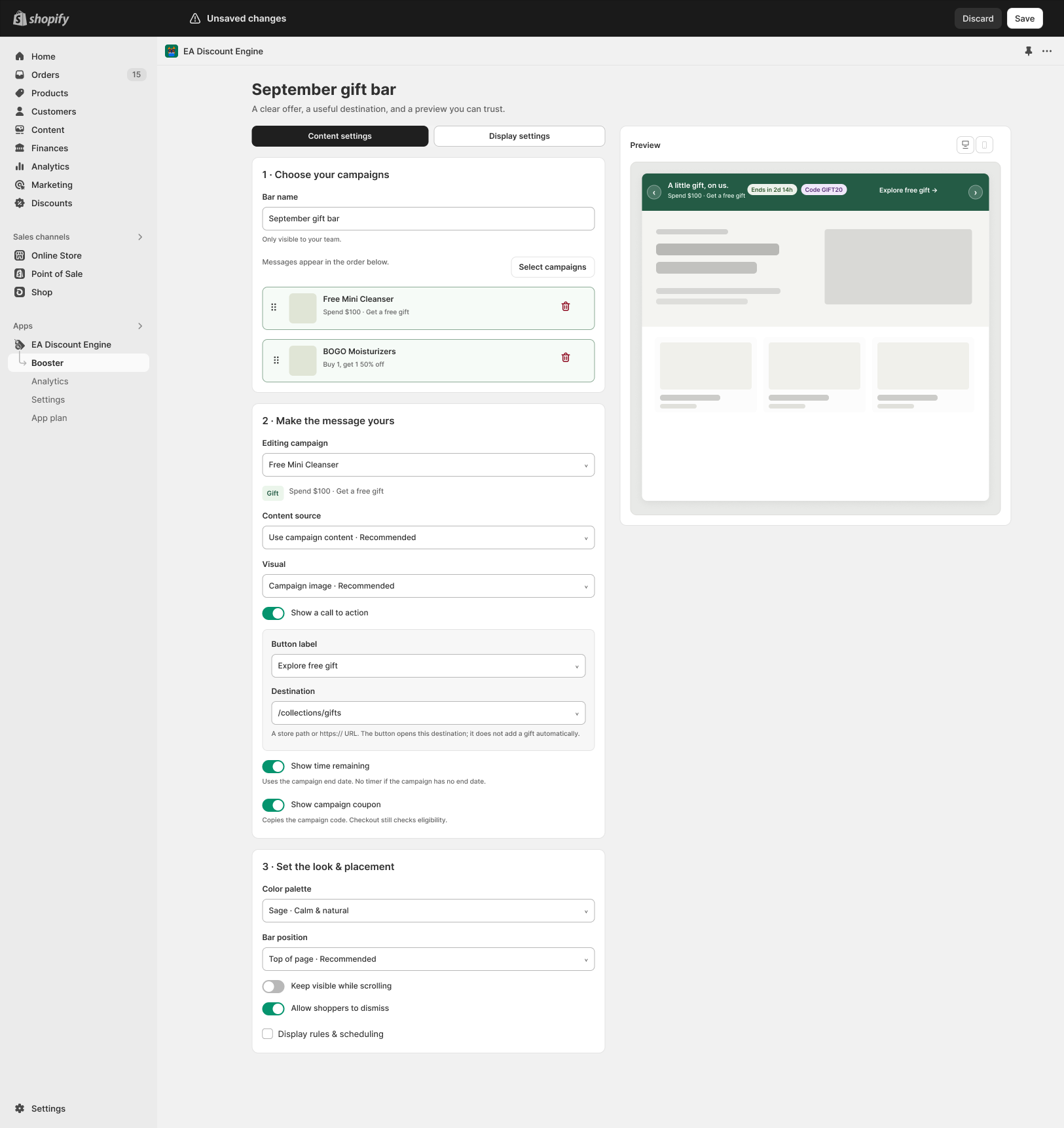
2. Select active campaigns to promote
- Under Campaign Coverage, select which campaigns appear inside the Spotlight popover. You can include Buy X Get Y offers, Collection Discounts, or Shipping & Order Goals.
- Order your campaigns by priority. The top campaign will serve as the primary headline displayed when shoppers first tap the launcher.
- Customize the teaser text and reward callout to give shoppers immediate motivation to add qualifying items to their cart.
3. Connect to your theme
Promotion Spotlight renders through your theme’s App Embed connection. Confirm that the ED: Buy X Get Y & Free Gifts embed is enabled in your active theme editor. No manual theme code edits or liquid template files are required.
4. Storefront test & mobile preview
- Open your storefront in a mobile view to verify the floating button does not collide with floating checkout buttons or support widgets.
- Tap the launcher to verify the popover opens smoothly, displays eligible products, and tracks campaign progress.
- Add a qualifying item to the cart and confirm the badge count and unlocked state update instantly.
Related resources
Related guides: Compare placements with the Cart Announcement Booster and verify your theme embed with Theme App Embeds.
Note: Interface controls and screenshots are for reference and may vary slightly depending on your active Shopify theme and app version.