Use the Gift Selection Modal in ED: Buy X Get Y & Free Gifts when shoppers should choose their own reward. The modal appears through the Customer chooses → Pop-up display method.
1. Prepare eligible gifts
- In Campaign setting, select the qualifying products or subtotal threshold.
- Set the reward products, available variants, gift quantity and discount value. Use 100% percentage when the selected reward should be free.
- Review eligibility, per-order caps and schedule. Keep the campaign Draft until the selection flow has been tested.
2. Select the pop-up display
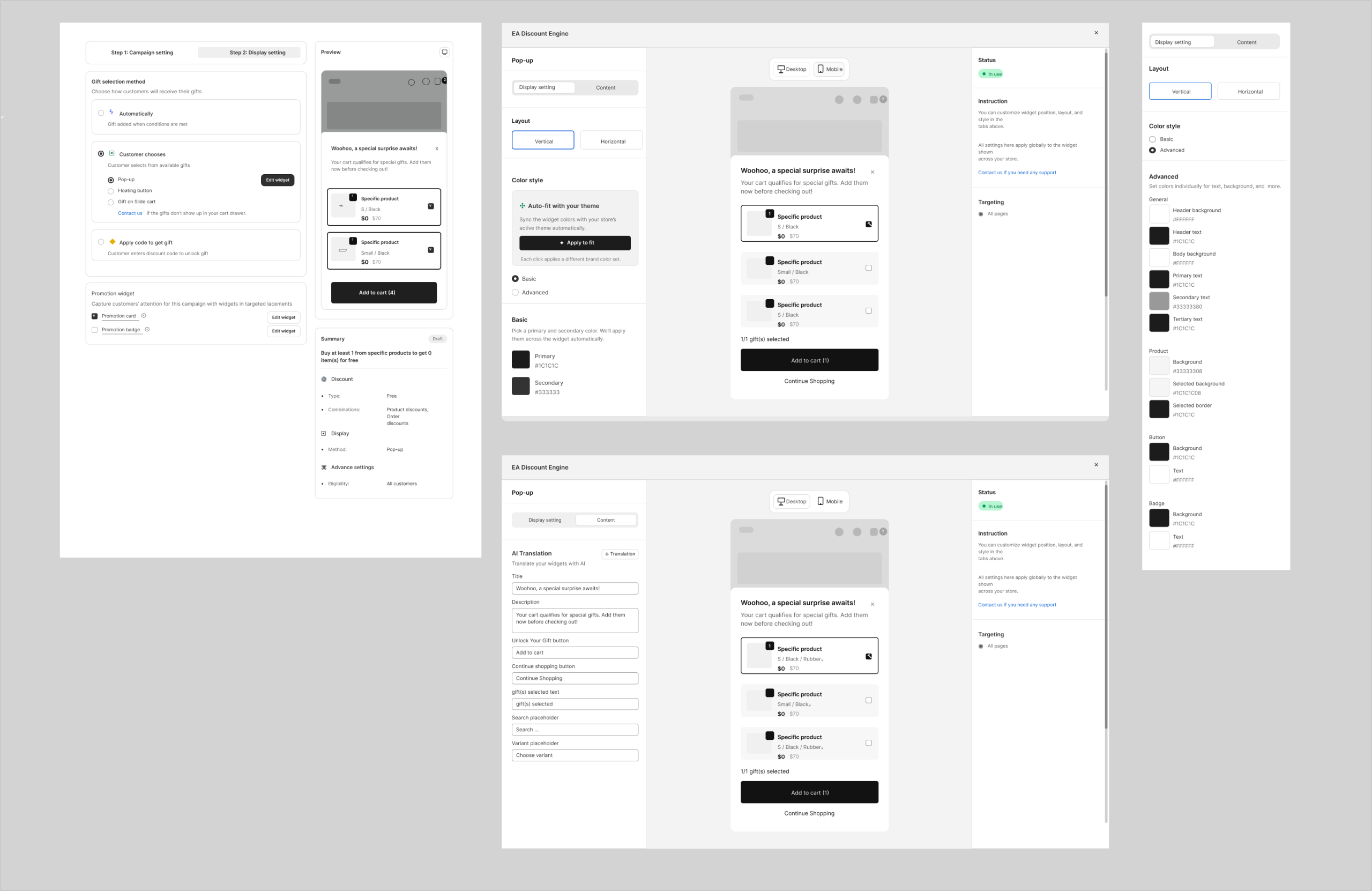
- Open Display setting and choose Customer chooses under Gift selection method.
- Choose Pop-up and open Edit widget.
- Choose Modal layout: Vertical or Horizontal. Review Auto-fit with your theme or the Basic/Advanced appearance controls.
- Switch Desktop/Mobile preview. Ensure gift cards, variant selectors, selection state and action buttons remain usable.
3. Write clear modal content
- Open Content and set the Title and Description to explain the offer and allowed number of gifts.
- Edit the Unlock Your Gift / Add to cart button and Continue shopping text. Use labels that describe what the action does.
- Review the gift(s) selected message, Search placeholder and Variant placeholder. Do not imply a variant is selected when it still requires customer input.
- Save the shared widget settings and the campaign. Check other campaigns that use the same widget before changing global content.
4. Test gift selection
- Open a cart below the requirement, then reach it. Confirm the modal only offers the intended reward under the campaign’s conditions.
- Select a gift and a required variant. Use Add to cart and confirm that the selected item appears with the correct quantity.
- Attempt to select more gifts than allowed and try an unavailable variant. Check the displayed feedback and final cart.
- Use Continue shopping, reopen the flow and verify selection state. Test the available search control if your gift pool is large.
- Remove a qualifying item and verify the discount updates. Check checkout and repeat on a mobile screen.
Troubleshooting
If the popup does not reappear, review display frequency and delay in General settings as well as eligibility. If it opens but the gift is not free, inspect the reward discount, selected variant and combinations; the modal’s appearance alone does not prove a checkout discount.
Illustrations are taken from the app design. Some screens use the legacy label “EA Discount Engine”; the app name is ED: Buy X Get Y & Free Gifts. Available controls can vary with the released version.
Related resources
Related guides: Compare with the Cart Drawer Widget or read how to create a Buy X Get Y campaign.