Let shoppers choose qualifying gifts directly in the cart drawer with ED: Buy X Get Y & Free Gifts. The design calls this placement Gift on Slide cart; it is a gift widget inside the drawer, not a replacement for every theme’s cart.
1. Configure a customer-choice reward
- Open the campaign and finish the purchase requirement, reward products, quantities and discount values in Campaign setting.
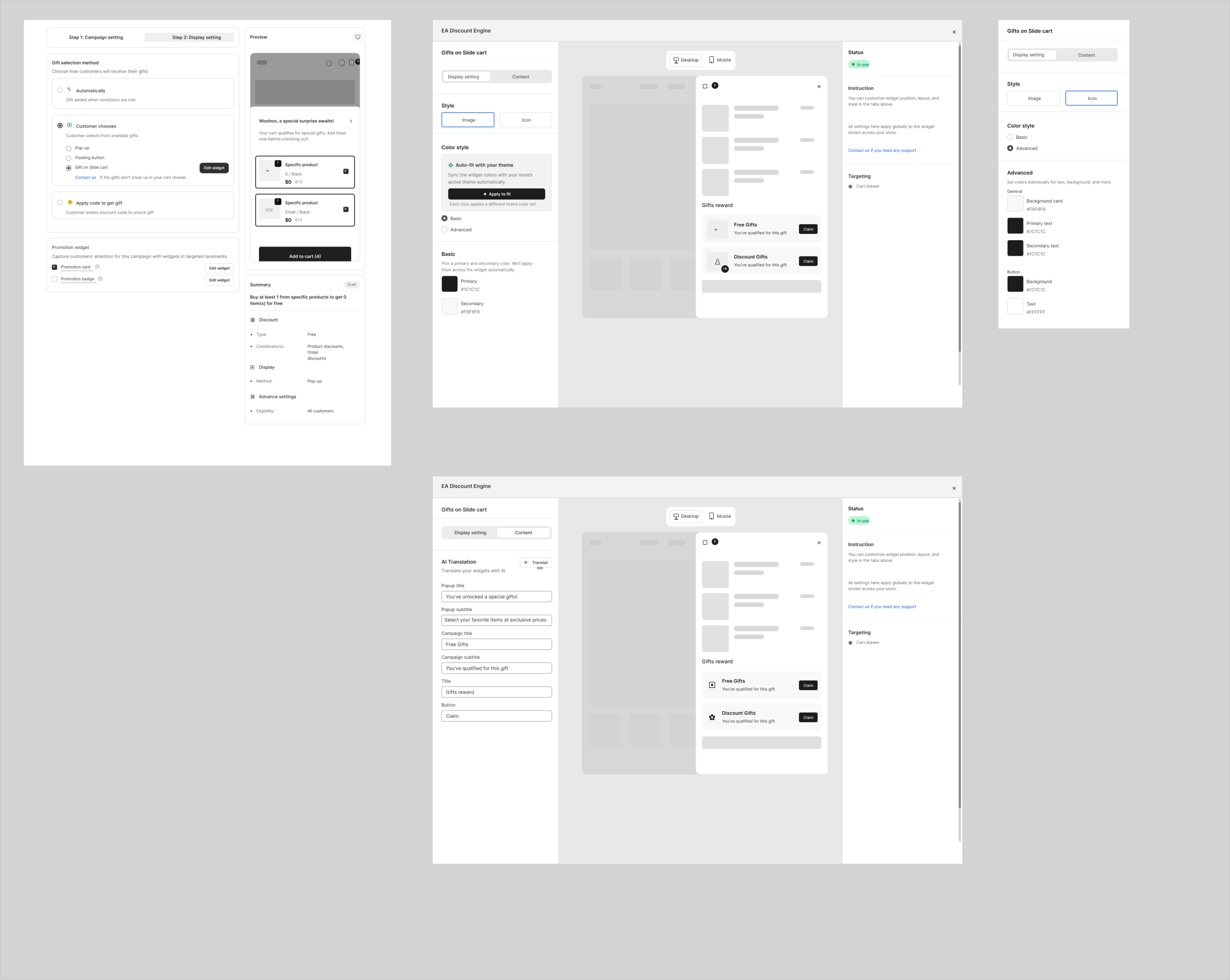
- Continue to Display setting. Under Gift selection method, choose Customer chooses.
- Select Gift on Slide cart and click Edit widget.
- Check that the app is connected to the published theme and that the theme’s drawer can host the widget. For a third-party drawer, test compatibility explicitly.
2. Customize the widget
- In the Gifts on Slide cart editor, open Display setting. Choose the Image or Icon style.
- Review Color style. Auto-fit with your theme and Apply to fit are shown in the design; Basic and Advanced allow appearance adjustments where available.
- Switch between Desktop and Mobile preview. Check that reward text, selection controls and the claim button fit without blocking cart actions.
- Open Content. Edit Popup title/subtitle, Campaign title/subtitle, Gifts reward title and the Claim button text as exposed by your version.
- Review the sidebar: the design marks Targeting as Cart drawer and notes that these widget settings are global across the store. Check other campaigns before saving a shared change.
- Save the widget and campaign. Confirm the campaign status and schedule are ready for shoppers.
3. Test the drawer
- Start below the purchase requirement, then add the qualifying items. Open the drawer after each change.
- Choose an available gift variant and use Claim. Verify the permitted gift quantity and cart contents.
- Change quantities, remove an eligible item, close/reopen the drawer and refresh the page. Check that the reward updates correctly.
- Open the full cart page and checkout to confirm the actual discount. Repeat on mobile.
If gifts do not appear
- Check saved app embed, campaign eligibility and the selected Gift on Slide cart method.
- Compare the full cart page with the drawer. A checkout discount that works while a drawer widget fails points toward storefront integration.
- Avoid running two apps that both replace or intercept the drawer during your test.
- The design provides a support link for custom drawers. Include theme and drawer-app names, reproduction steps and screenshots when requesting help.
Illustrations are taken from the app design. Some screens use the legacy label “EA Discount Engine”; the app name is ED: Buy X Get Y & Free Gifts. Available controls can vary with the released version.
Related resources
Related guides: Learn about the Gift Selection Modal and troubleshoot Third-party cart conflicts.